[addtoany]
Data Validation in Excel
With Excel you can ensure that users of an Excel document enter the ”right” data. The easiest way to set up data validation is to use Excel’s built-in functionality for the purpose.
The validation rules you set up can be used for many purposes. For example, you can use them to ensure that customers fill in all the order data required for you to be able to deliver, and you can ensure that colleagues enter the right input data into a calculation model or database. This allows you to analyse the data with greater confidence. Validation rules save working time and prevent mistakes from occurring.
What is a validation rule?
When you set up validation rules, you should answer four questions:
- Which cells should the validation rule apply to?
- What data should be allowed in the cells?
- Under what circumstances should the validation rule apply?
- How should the user be guided to do the right thing?
Excel data validation step by step
We will now go through how to set up a validation rule step by step.
Which cells should the validation rule apply to?
Select the cells the validation rule should apply to.
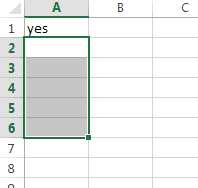
What data should be allowed in the cells?
Click the Data tab.
Click the Excel data validation button.

A pop-up window opens.
Choose which type of values you want to allow.
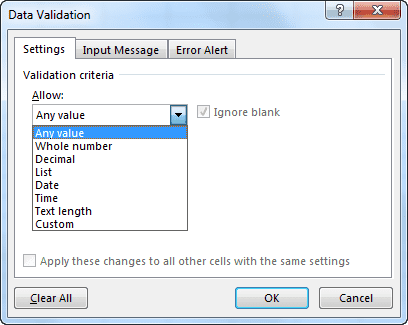
After you have chosen which type of values to allow, new fields appear. In them you define more precisely which values or ranges are to be allowed.
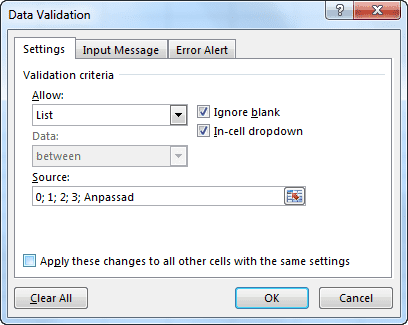
Under what circumstances should the validation rule apply?
This step is a little more complicated than the others. Choose one of the cells you originally selected, to begin by creating the validation rule for that cell.
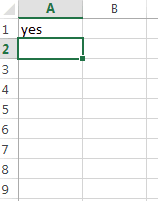
Click the Data tab.
Click the Excel data validation button.
The data validation window opens.
Choose the validation criterion ”Custom”.
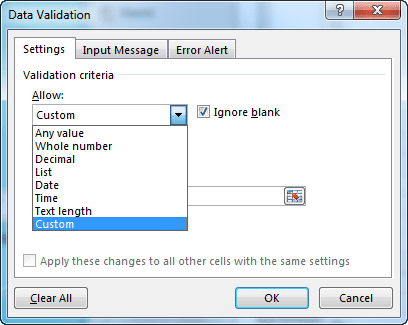
Use one or more IF statements to define different cases for the validation rule.
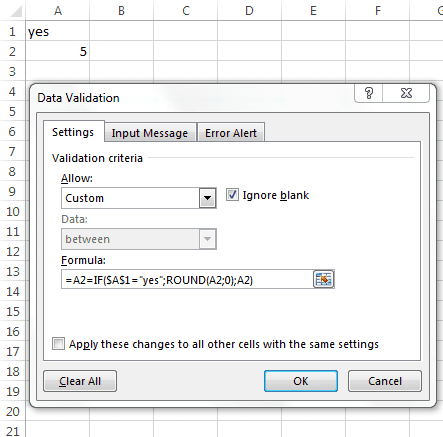
Click OK.
Now select all the cells you want to have a similar validation rule for, but with the difference that a different cell reference should appear in the formula instead of A2.
Click the Data tab.
Click the Excel data validation button.
You are asked whether you want to apply the validation rule we just set up to all the selected cells.

Click Yes.
The data validation window opens.
Click OK.
The conditional validation rule has now been copied to all the selected cells.
How should the user be guided to do the right thing?
Click the Data tab.
Click the Excel data validation button.
Select the cells the validation rule should apply to
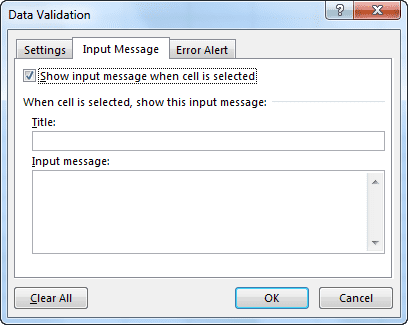
Choose Input message to define a text that appears next to the cell when it is selected and that explains the validation rule to the user.
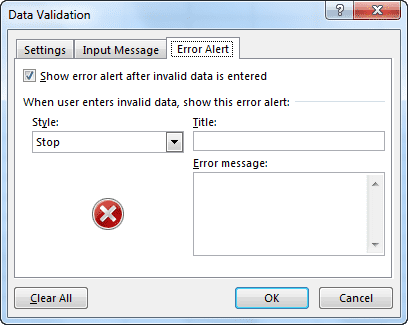
Choose Error alert to define an error message that is displayed when the user has tried to enter data that the validation rule does not allow.
Do you need complicated validation rules?
I hope this article helps you create validation rules for your purpose. If you have a problem that the above does not solve, you are welcome to get in touch with us. In some cases you may also have more complicated or other data validation needs that are best solved in VBA/C# or with UserForms.
Some of our customers
We have both large and small companies as customers.