[addtoany]
Using Pivot Tables in Excel
Pivot tables are a very powerful tool for analysing data in Excel. Equivalents of Excel’s pivot tables also exist in other spreadsheet programs, in programs specialised in data analysis and also in the database world. Pivot tables recur in so many different applications because they enable flexible and powerful data analysis.
What is a pivot table?
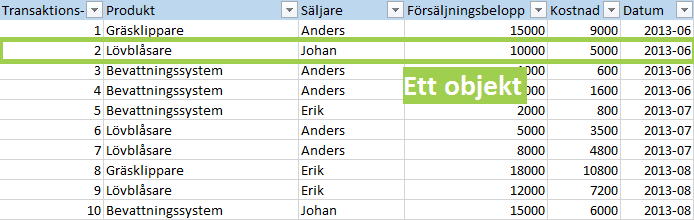
Let us begin by going through what characterises an ordinary table. A table consists of rows and columns. If you build ordinary tables according to good practice, you let each column consist of one data type and each row consist of one object.
Columns contain different types of data:

Rows contain different objects:
A pivot table is based on an ordinary table, but in the pivot table you summarise data based on what you choose to show as rows and columns:

Creating a pivot table
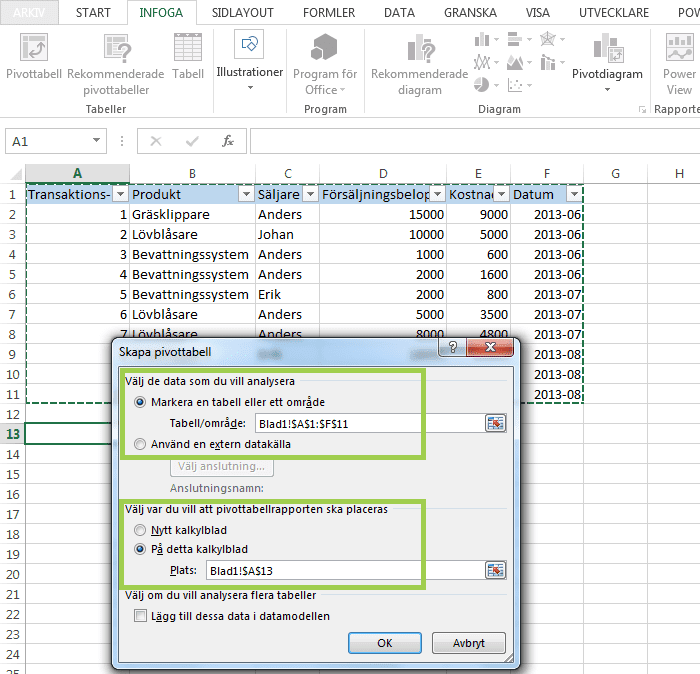
To create a pivot table, click Insert > PivotTable.

Select an ordinary table as the data source. Choose the target cell where you want the upper left corner of the pivot table to end up.
Choose which data you want to show in the pivot table
We have now created a pivot table, but it does not show any data yet.

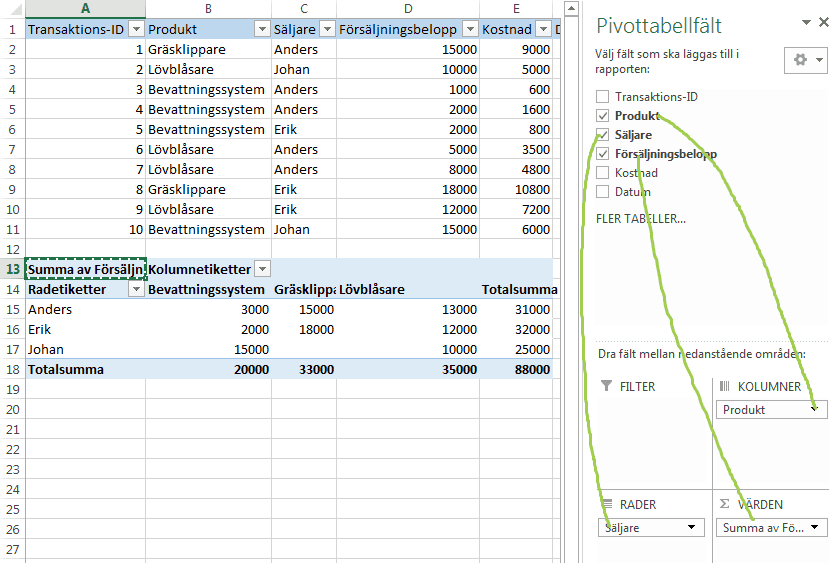
Choose which data type you want to place in each part of the pivot table. You can, for example, choose to show Salesperson as rows, Products as columns and Sales amount as cells. This means we show the sum of Sales amount per Salesperson and Product.
You place data types in the fields by dragging and dropping from the list of pivot table fields to the relevant part of the pivot table.
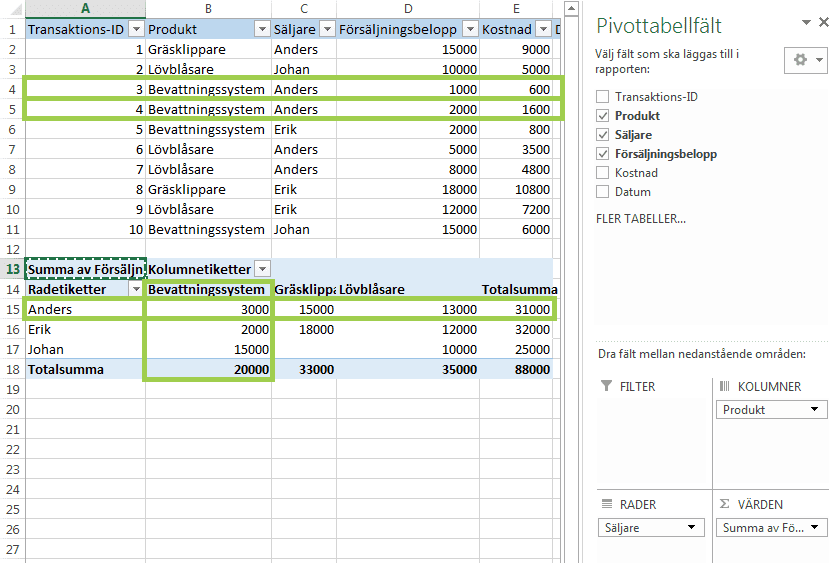
In the pivot table you can see that Anders has sold irrigation systems for 3000. The background to that figure is that Anders has sold irrigation systems on two rows in the original, ordinary table, for 1000 and 2000 respectively. The pivot table shows the sum of those sales in the cell where the Anders row and the irrigation systems column intersect. Pivot tables always show sums.
Creating calculated fields
You can calculate new data types in pivot tables. This functionality is called calculated fields. You will find calculated fields under PivotTable Tools > Analyze > Fields, Items & Sets > Calculated Field.

We create a calculated field that we call Profit. We let it be Sales amount – Cost. The pivot table then calculates the sum of all the sales data belonging to a cell, subtracts the sum of the costs and thereby calculates the sum of the profit.
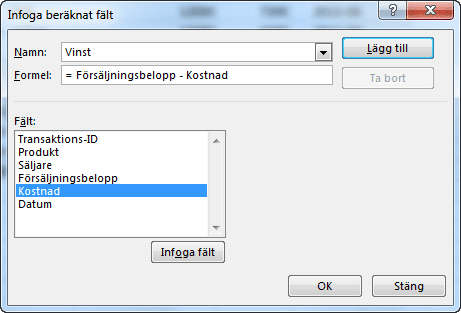
We choose to show Profit per Salesperson.
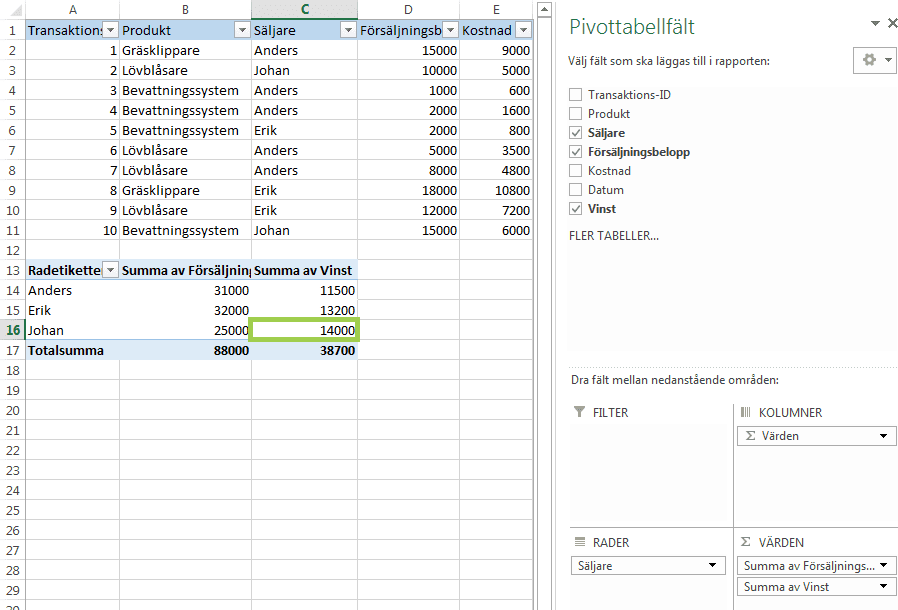
We then see that Erik has sold the most for the company, but that it is actually Johan who has been the most profitable for the company. This was not obvious from looking at the original table, and would definitely not have been if the original table had been longer and harder to get an overview of. With this example we see how pivot tables help us make discoveries in our data and learn more about our business.
There is more
There is much more to learn about pivot tables that we do not have room for here. But we have gone through the core of pivot tables in this article and hope you have found it instructive. We wish you good luck in your continued work with pivot tables!
Some of our customers
We have both large and small companies as customers.