[addtoany]
Move around and select in a worksheet with keyboard shortcuts
Moving around and selecting in a worksheet with a lot of data can feel laborious and time-consuming. Fortunately, there are smart keyboard shortcuts that make it easier.

Keyboard shortcuts for moving around and selecting
Ctrl+arrow key: activates the last non-empty cell in the direction of the arrow
Shift+arrow key: selects one cell in the direction of the arrow
Ctrl+shift+arrow key: selects all cells between the cell where you were and the last non-empty cell in that direction
What is efficient in small tables is laborious in large tables
The following way of moving to the last cell in a list is efficient if the list is short but laborious if the list is long:
- Scroll down and finally click with the mouse on the last cell.
The following way of selecting a table is efficient if the table is small but laborious if the table is short.
- Click on the cell in the top left corner, hold down the mouse button and drag the mouse downwards and to the right until the whole table is selected.
Moving around and selecting is much faster with keyboard shortcuts
I do not use very many keyboard shortcuts in Excel. It is seldom the speed of my commands that limits my efficiency in Excel. But the following keyboard shortcuts for moving around and selecting in worksheets are ones I use very often. They make my everyday work easier.
If you press the right arrow, down arrow, left arrow and up arrow, you activate the cell one step in each direction
But if you hold down ctrl and instead press ctrl+right arrow, ctrl+down arrow, ctrl+left arrow and ctrl+up arrow, you activate the last cell in each direction that is not empty.
If you hold down shift instead and press shift+right arrow, shift+down arrow, shift+left arrow and shift+up arrow, you select one cell in each direction.
If you hold down both ctrl and shift at the same time together with one of the arrow keys, you select all cells between the cell where you were and the last non-empty cell in that direction.
Holding down Ctrl has another function
Holding down Ctrl has another function. When you hold down Ctrl, you can select several ranges by clicking and dragging with the mouse. That too is useful for getting exactly the selection you want in an efficient way
An example
1. Start by activating cell <code>A1</code>
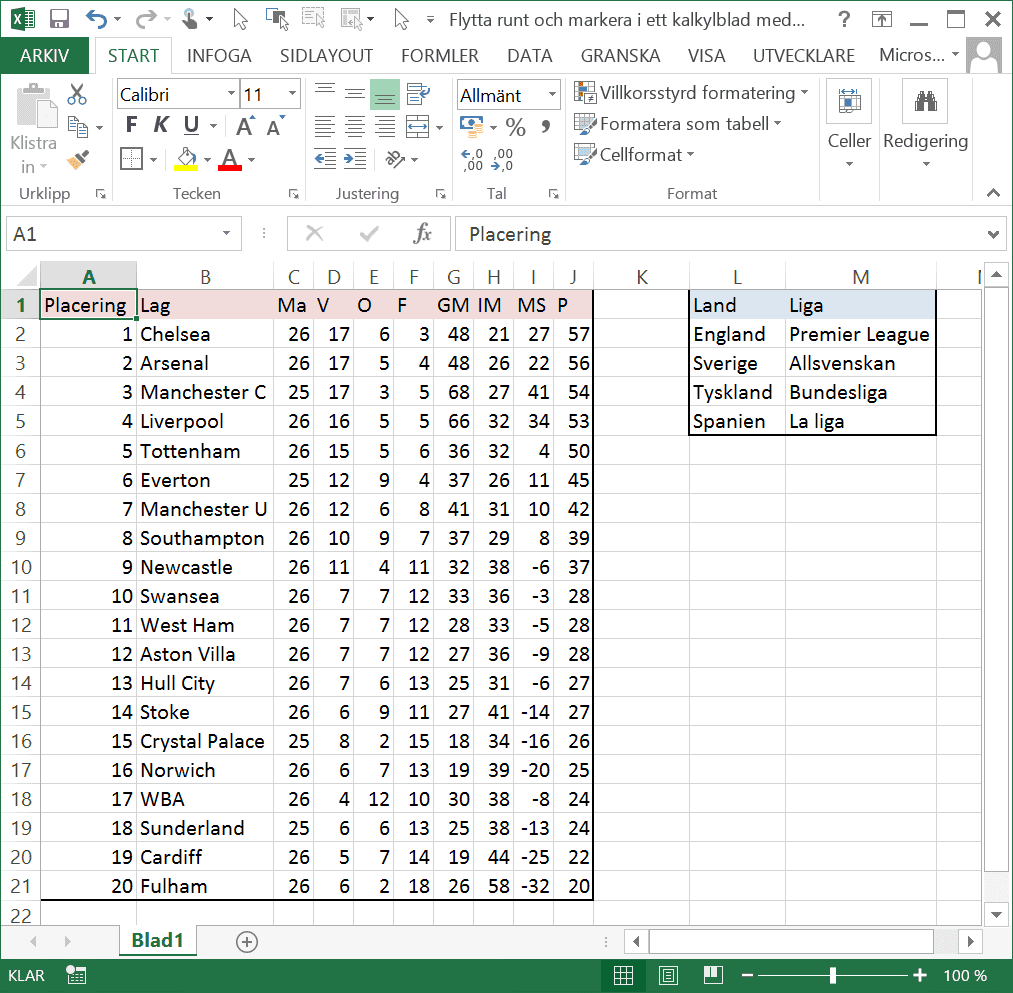
2. Press ctrl+shift+right arrow

3. Press ctrl+shift+down arrow

4. Hold down ctrl and select the small table to the right with the mouse.
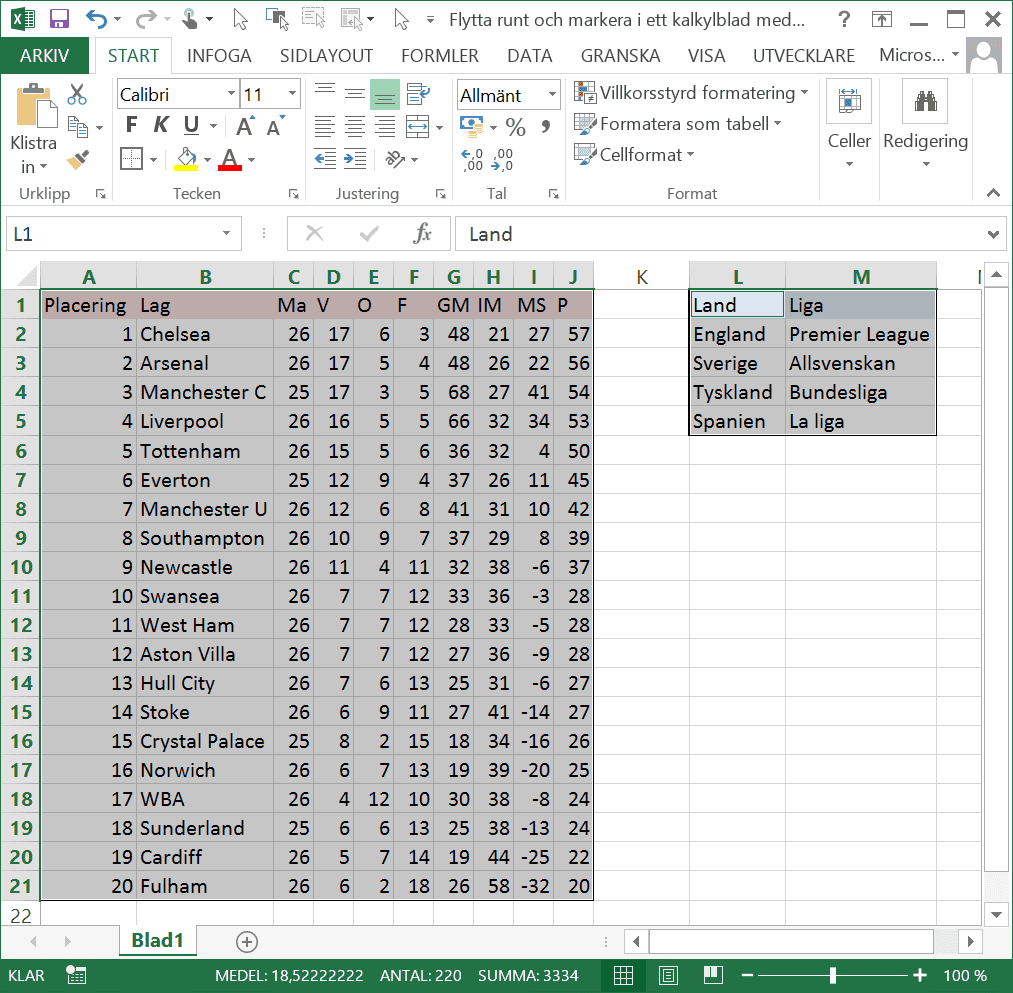

Move around and select in a worksheet with keyboard shortcuts – Example
1 file(s) 10.24 KB
Some of our clients
Our clients include both large and small companies.