[addtoany]
The Excel Function VLOOKUP
It is hard to understand the VLOOKUP function by reading about it and thinking about it. The best way to learn the function is by practising and experimenting. We will therefore go through a typical example using the VLOOKUP function.
VLOOKUP in an example
Imagine the following situation: you have a table with sales in local currency and another table with exchange rates, as in the picture below.
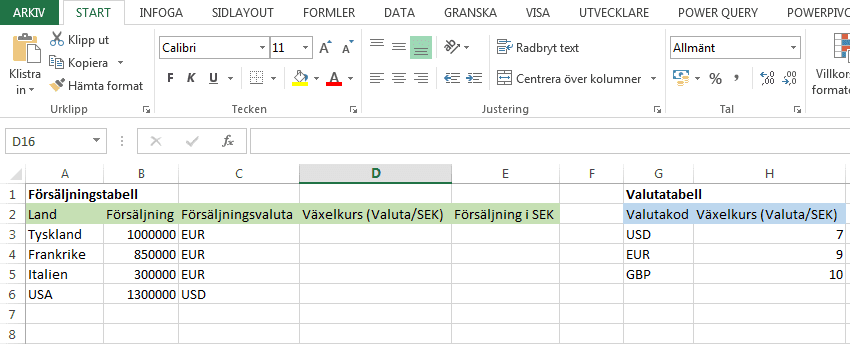
You want to calculate sales per country in SEK. To do that you need country, sales, sales currency and exchange rate. You have everything except the exchange rate in your sales table. You therefore use VLOOKUP to fetch that information from the currency table.
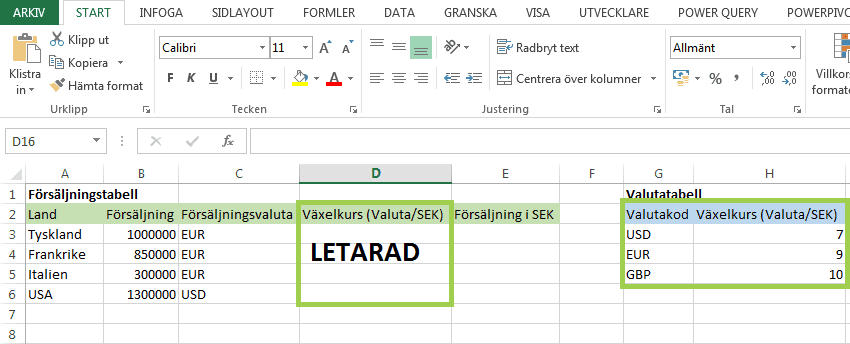
VLOOKUP is a very powerful function in Excel that is used often. The function is written:
VLOOKUP(lookup_value,table_array,col_index_num,range_lookup)
You start by entering the formula in D3.

lookup_value = The value you search for, which in this case is EUR. See the picture below.
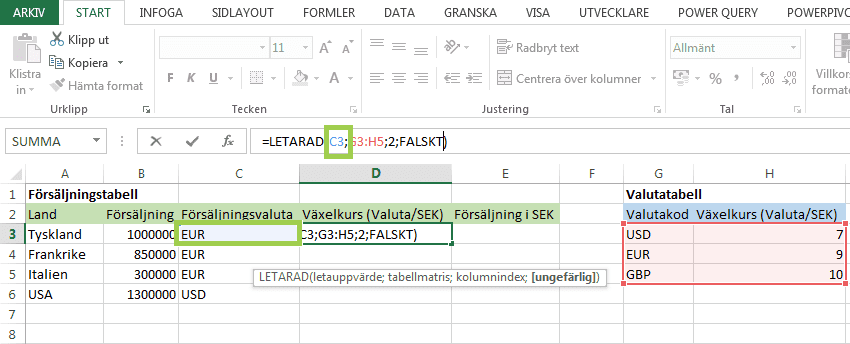
table_array = the array where you want to find the lookup value in the first column, and in one of the other columns find what will be the result of the function, in this case the exchange rate.

col_index_num = counted from one in the table array, and increasing to the right, the index of the column where you want to find what will be the result of the function, in this case the exchange rate.

range_lookup = We set FALSE here because we are looking for an exact ”EUR”. If range_lookup is set to TRUE and no exact match is found, the closest value that is smaller than the lookup value is returned.
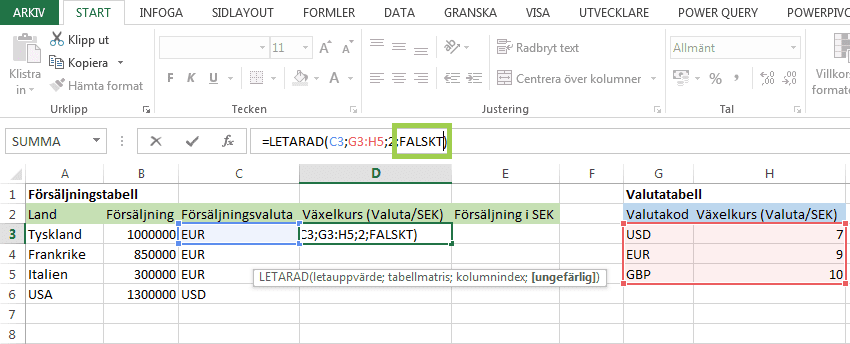
If you have got the formula right, it returns the value 9. In the picture below the formula returns the desired exchange rate.

There you go!
Filling a whole column with VLOOKUP
If you want to find the exchange rates for all the rows in the sales table, you can copy the VLOOKUP formula down to all rows.
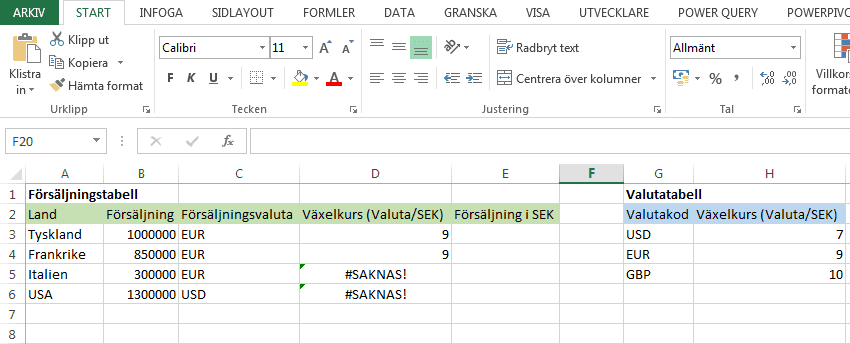
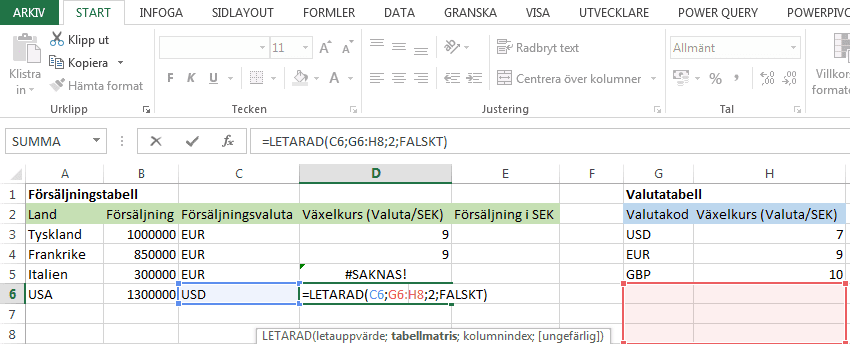
But if you do that, you will see that the result is not what we expected. To understand why, you need to know about relative and absolute cell references in Excel. You want to search in the same currency table in all your formulas. You therefore need to lock some cell references by typing dollar signs in front of the column or row labels that are to be locked.
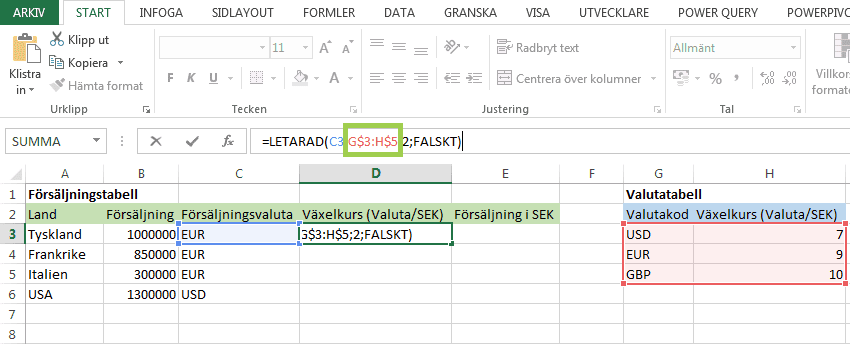
This makes no difference to the result in D3.
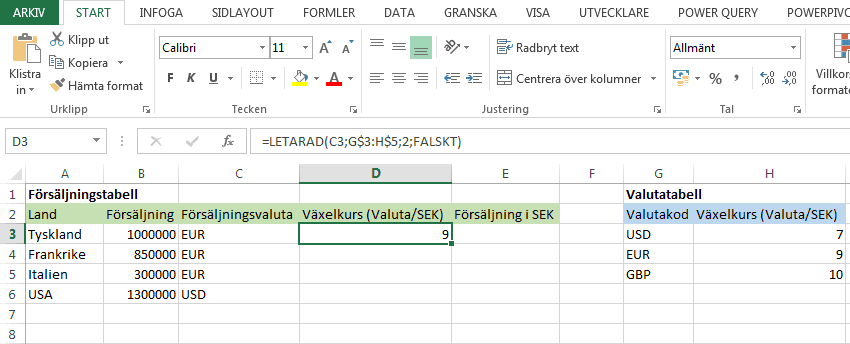
But when you copy D3 down to the other cells, you now get the correct result in them as well.


With this success we conclude our guide to the Excel function VLOOKUP. VLOOKUP is often used precisely to fetch a value from one table to another based on a ”lookup value”. We hope the article has been useful and that you will get a lot of use out of the VLOOKUP function going forward!
Some of our customers
We have both large and small companies as customers.