The SUM function
The SUM function is often the first function Excel users learn. That is why I try here to explain in detail how to use the SUM function in Excel.
Excel’s built-in function for adding numbers is called SUM and is written:
SUM(number1,number2,...])
If we break the above down step by step, you write:
SUM– the name of the function(– opening parenthesisnumber1– the first number you want to add,– separatornumber2– the second number you want to add,...– if you want to add more numbers, you continue with more separators and numbers)– closing parenthesis
Adding numbers
You can use the SUM function to calculate the total of as many numbers as you like. By typing =SUM(10,10,10) in the formula bar (as in the example below) and pressing Enter, you calculate 10+10+10. Had you instead typed =SUM(1,3,10,-2), the result would have been 1+3+10+-2=12.

Adding values from other cells
You can also add values from other cells. In the example below I add the values from B1, B2 and B3. When I enter the function and press Enter, I get the correct answer, 30.


Adding values from cell ranges
In the example above I specified references to individual cells as number1, number2 and number3. You can also specify references to cell ranges, as in the example below. A cell range is written as start cell:end cell. Note that the start cell and the end cell are joined by a colon. In that example every cell in the range is added, just as if we had specified the cells one by one. SUM(B1:B3) is therefore the same as SUM(B1,B2,B3).

Adding a combination of numbers, values from other cells and values from cell ranges
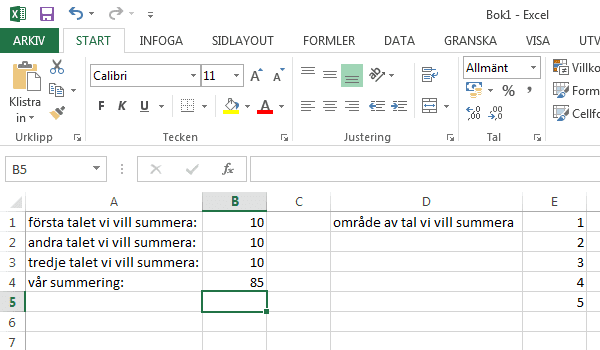
You can add a combination of numbers, values from other cells and values from cell ranges in one and the same SUM function, as the example below illustrates.

I hope you have now learned what you needed about the Excel function SUM and feel that you have mastered the formula.
Previous
Next
Some of our customers
Our customers include both large and small companies.