Moving content
The main method for moving content in Excel from one place to another is to use cut together with paste. Cutting and pasting differs from copying and pasting in several respects. Among other things, it is not possible to cut only certain content.
Two other tools that have the effect of moving content in Excel are insert and delete. You can choose to insert/delete cells, rows or columns in Excel. If you insert a new row between two rows, for example, all content below the new row is moved down one step. This has the same effect as if you had cut the content below and pasted it one row below its original position.
Cut + Paste
When you choose Cut ⇒ Paste you move “everything” (formula, value, formatting) from one cell to another. Step by step, you do it as follows:
- Select the cells you want to cut.

- Choose Cut.
- Select the cell where you want to paste.
(Whether you are pasting one cell or a range of cells, it is enough to select one cell in this step. If a range of cells is to be pasted, select the cell in the top left corner of where you want the cell range to end up.) - Choose Paste.

Insert and Delete
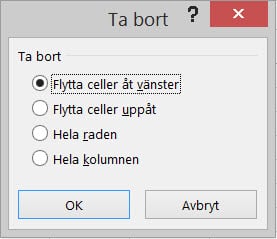
On the Home tab there is the Cells group with the tools that make it possible to insert and delete cells, rows or columns. These resemble the cut and paste tools. You move ”everything” (formula, value, formatting), but here you move by inserting new rows, columns or cells and pushing everything else aside. Delete is the opposite of insert.





Previous
Some of our customers
Our customers include both large and small companies.